AI Enhance Guide
What AI Enhance is
AI Enhance helps turn a source product image into a cleaner result for commercial use. It keeps the original media available and usually creates a new enhanced result instead of replacing the source.
AI Enhance is for images. AI Video is a separate workflow.
Before you start
- Sign in to the correct ALO account and cloud environment.
- Make sure you have an internet connection before submitting the job.
- Check that your account has enough ALO Coins for the selected option.
- Use a clear product image that is already in your media workflow, either captured in ALO App or imported from a supported source.
- Use AI Enhance only on a supported app build and platform when the feature is shown in your app.
Opening AI Enhance
Open the image you want to improve, then choose AI Enhance from the available image tools or edit actions.
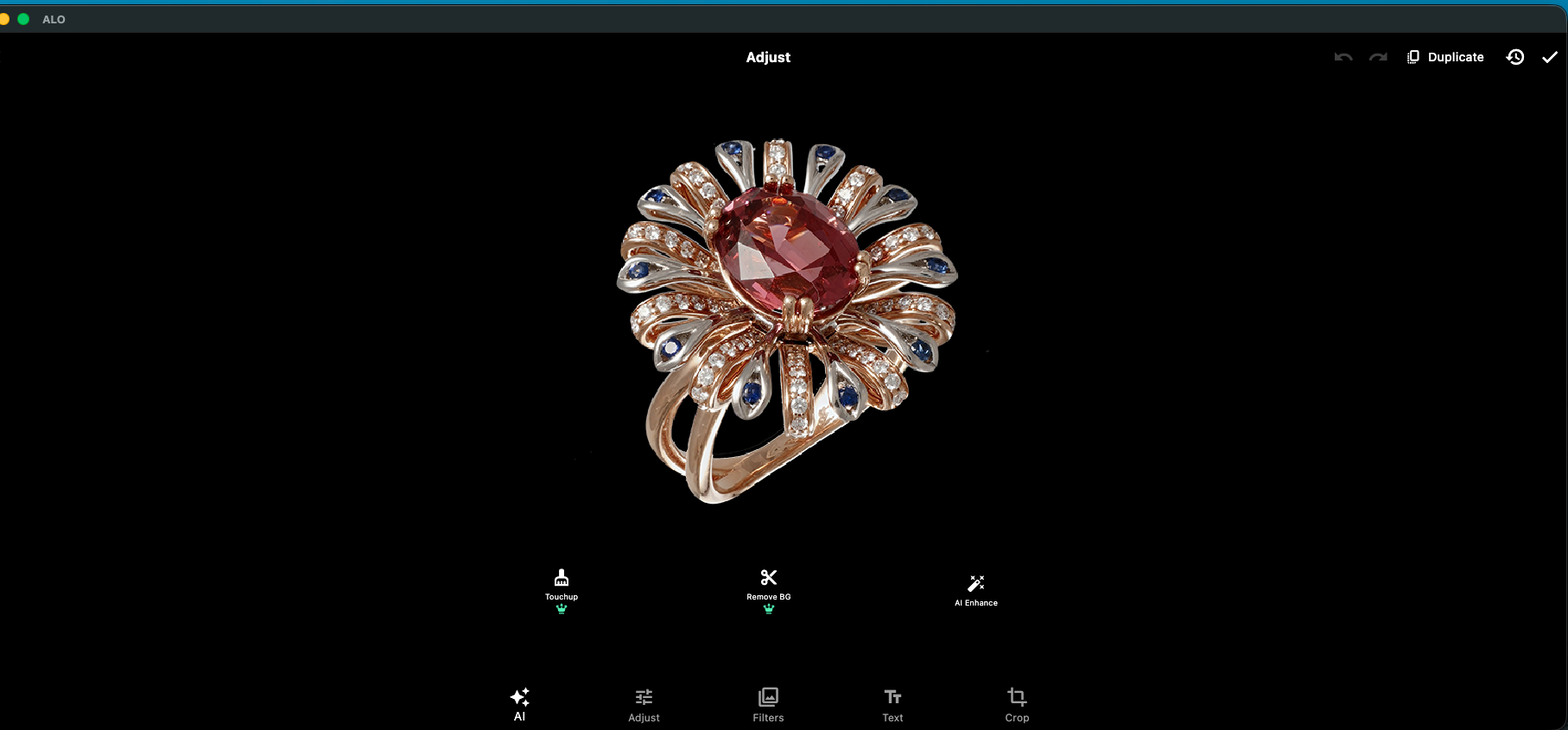
If AI Enhance is not visible, check your account, app version, platform and entitlement state before assuming the feature is missing.
Selecting the source image
Choose the image that best represents the product.
- A sharp, well-exposed source image usually gives the most controllable result.
- An image captured with ALO Photo Tube or ALO Photo Sphere can be a good starting point when that workflow is available.
- Imported product images can also work when they are supported by the current app build.
Do not expect AI Enhance to recover detail that is blurred, clipped or missing from the source.
Describing the desired result
Use the prompt field or other instruction area shown by the app to describe the result you want.
- Be clear about what should stay the same.
- Be clear about what should change.
- Avoid contradictory instructions.
- If a Prompt Library selector is shown, you can reuse a saved prompt instead of rewriting it.
Prompt Composer is not treated as a customer workflow here unless it is explicitly shown in the current app.
The same panel where you describe the result also shows the processing options and the ALO Coin cost, covered in the next two sections.
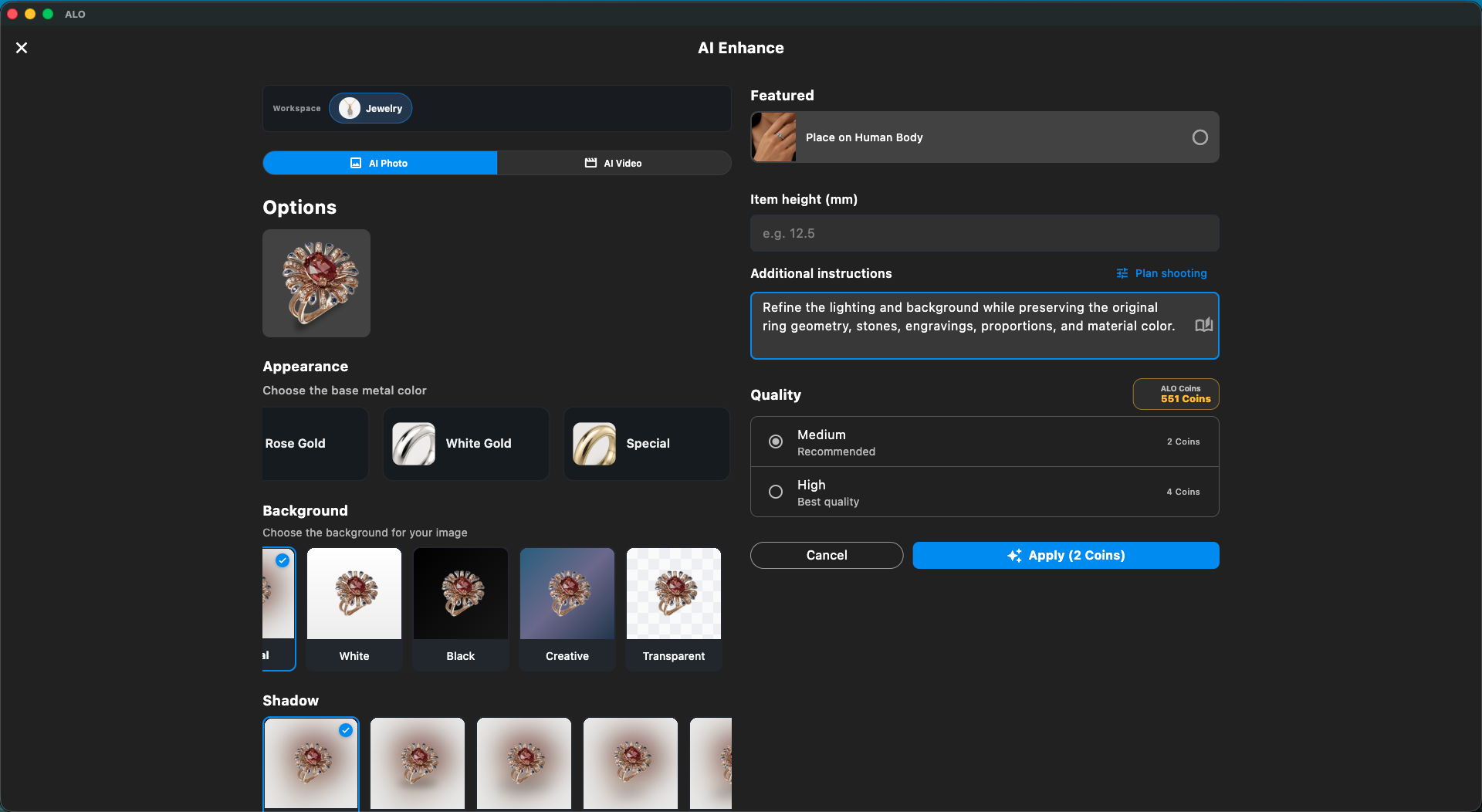
Choosing available processing options
Use only the options visible in the current app build.
- Select the quality level shown by the app.
- Choose material or metal-color options if they are available for your product.
- Choose background or transparency handling only when the app offers those controls.
Do not assume every option appears on every platform or for every account.
Reviewing the ALO Coin cost
Review the Coin cost before you submit the job.
In the app screen shown above, Medium is labeled "Recommended" at 2 ALO Coins and High is labeled "Best quality" at 4 ALO Coins. The ALO Coin amount shown in the app may change if processing options or pricing are updated, so treat the amount displayed in the app at submission time as authoritative.
Starting the enhancement
When you are ready, submit the job and wait for processing to finish.
- Leave the task running if you can keep working.
- Return later if needed through AI Tasks.
- Do not resubmit immediately if the job is already running.
Monitoring processing
AI Tasks is where you check the status of submitted jobs.
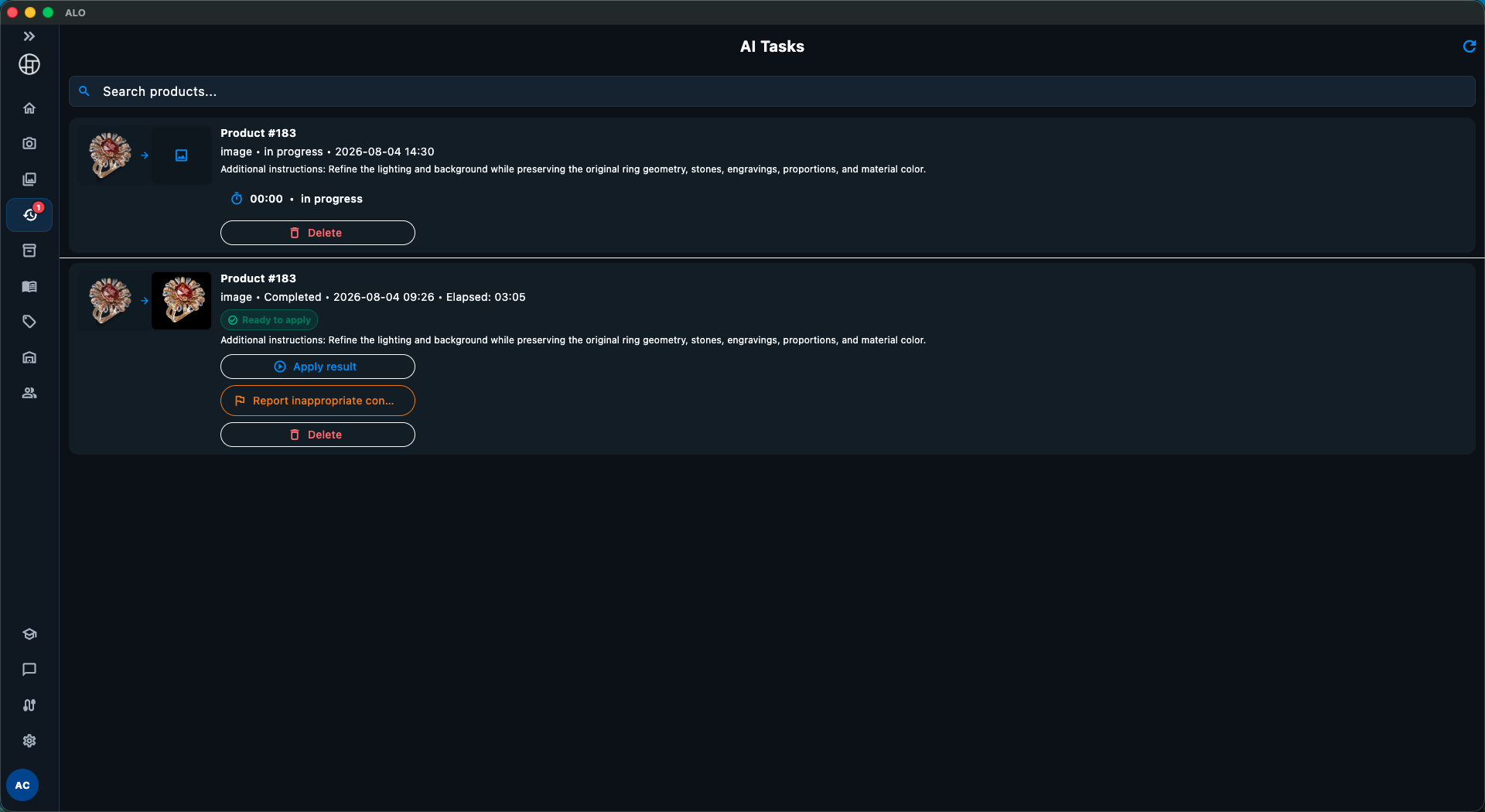
- A running job shows an in-progress state next to a Delete action. The app does not show a progress percentage or an estimated time, so treat "in progress" as the status to watch rather than a countdown.
- In-progress jobs can stay in the queue until they finish.
- Failed image jobs may offer a retry action.
- Completed image jobs can usually be reopened from AI Tasks or from the media workflow.
Reviewing the result
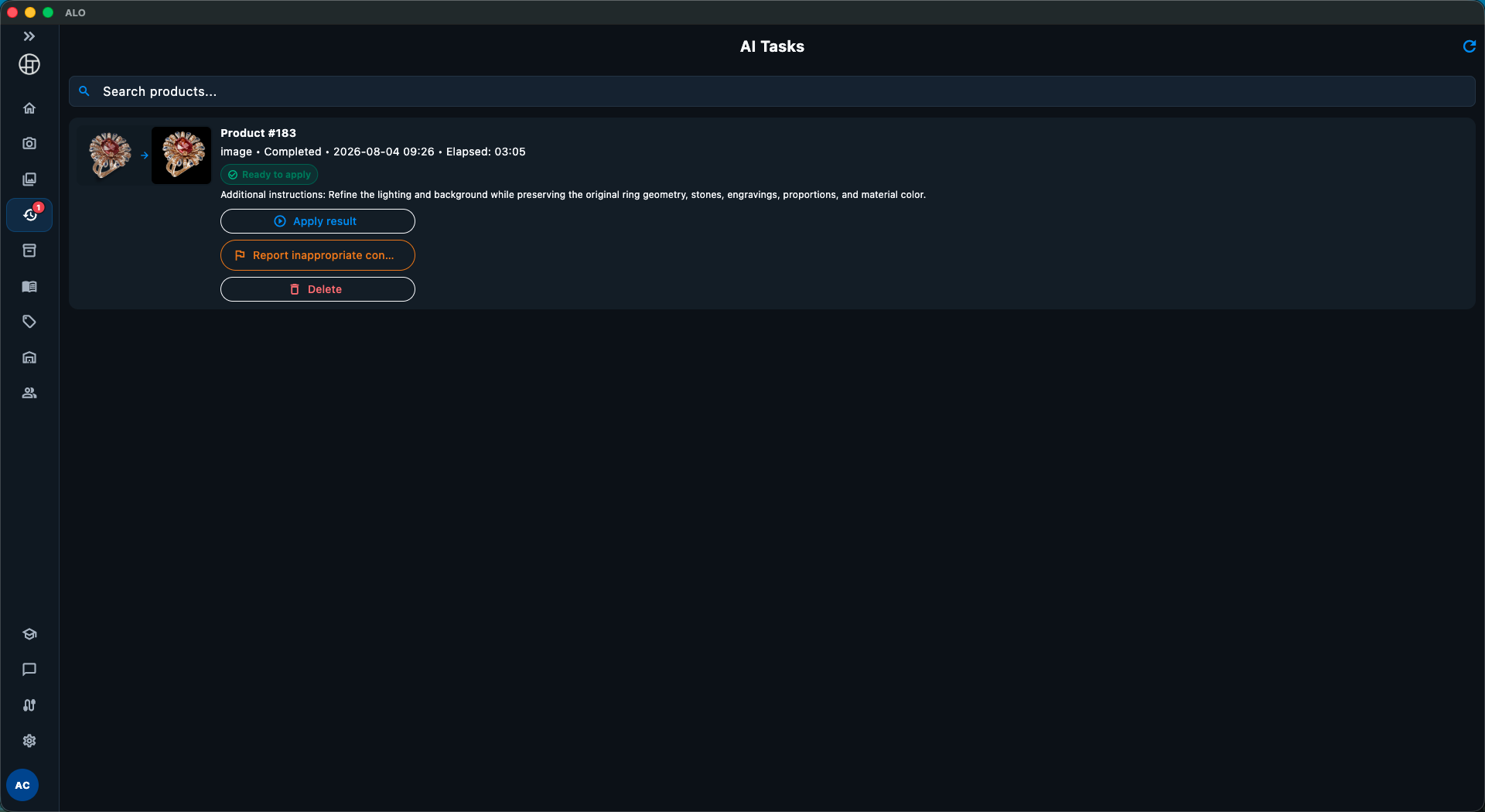
Review the enhanced image before sharing or publishing it. A completed job shows a "Ready to apply" result alongside the actions described below.
Use the comparison view to inspect differences between the source image and the AI-enhanced result before applying it.
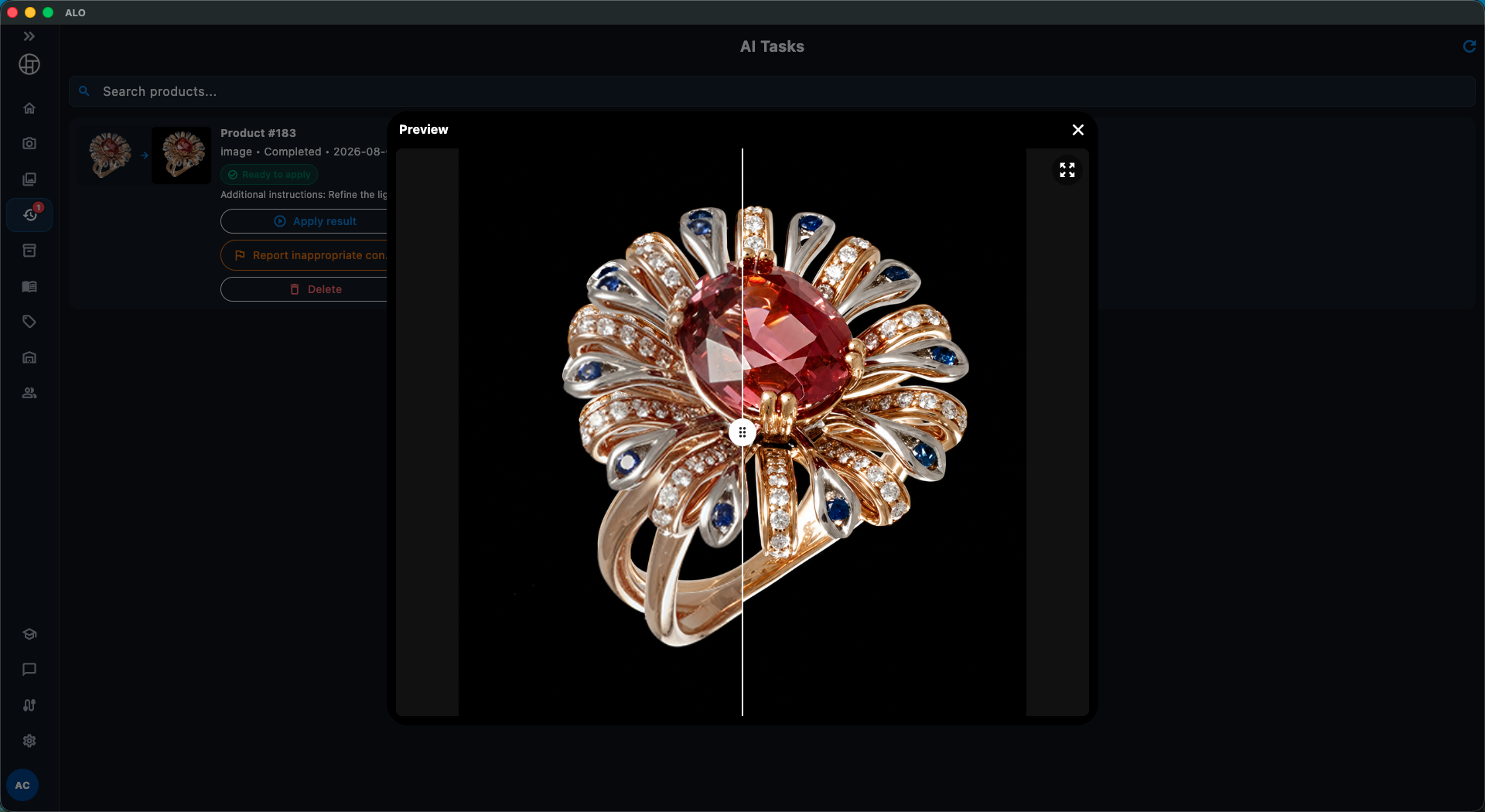
AI-generated results may vary. Always review product geometry, materials, stones, engravings, text, colors, reflections, transparency and other commercially important details before publishing or sharing the result.
The source image influences the result, and clearer prompts usually make the output easier to control. AI Enhance can improve an image, but it does not guarantee exact fidelity to the original product in every case.
Applying the result
Use Apply result on a completed job to keep the enhanced image, and use the comparison view described above to check it first. The app also offers a Report inappropriate content action and a Delete action on completed jobs.
Do not assume destructive overwrite of the original source image is the normal behavior for AI Enhance.
Finding completed enhancements in AI Tasks
Open AI Tasks to find submitted jobs, completed results and any retry action that is available for the current task.
If a completed result is not visible, check whether the app can materialize the result before you submit the job again.
Working with background options
When the app offers background controls, the choices shown are Original, White, Black, Creative and Transparent.
The Transparent option is available when supported by the source image and the selected processing workflow. If your source image or result uses transparency, confirm the output format and review the image on light and dark backgrounds before publishing it.
- PNG can preserve transparency.
- JPEG cannot preserve transparency.
- Do not assume every result keeps perfect alpha transparency; review the result before relying on it.
Background options may vary by platform, build and account.
Working with jewelry metal appearance options
When the app shows an Appearance selector for the base metal color, the options observed so far are Original/Preserve, Yellow Gold, Rose Gold, White Gold and Special. This selector can be horizontally scrollable, so more options may be available than are visible at first.
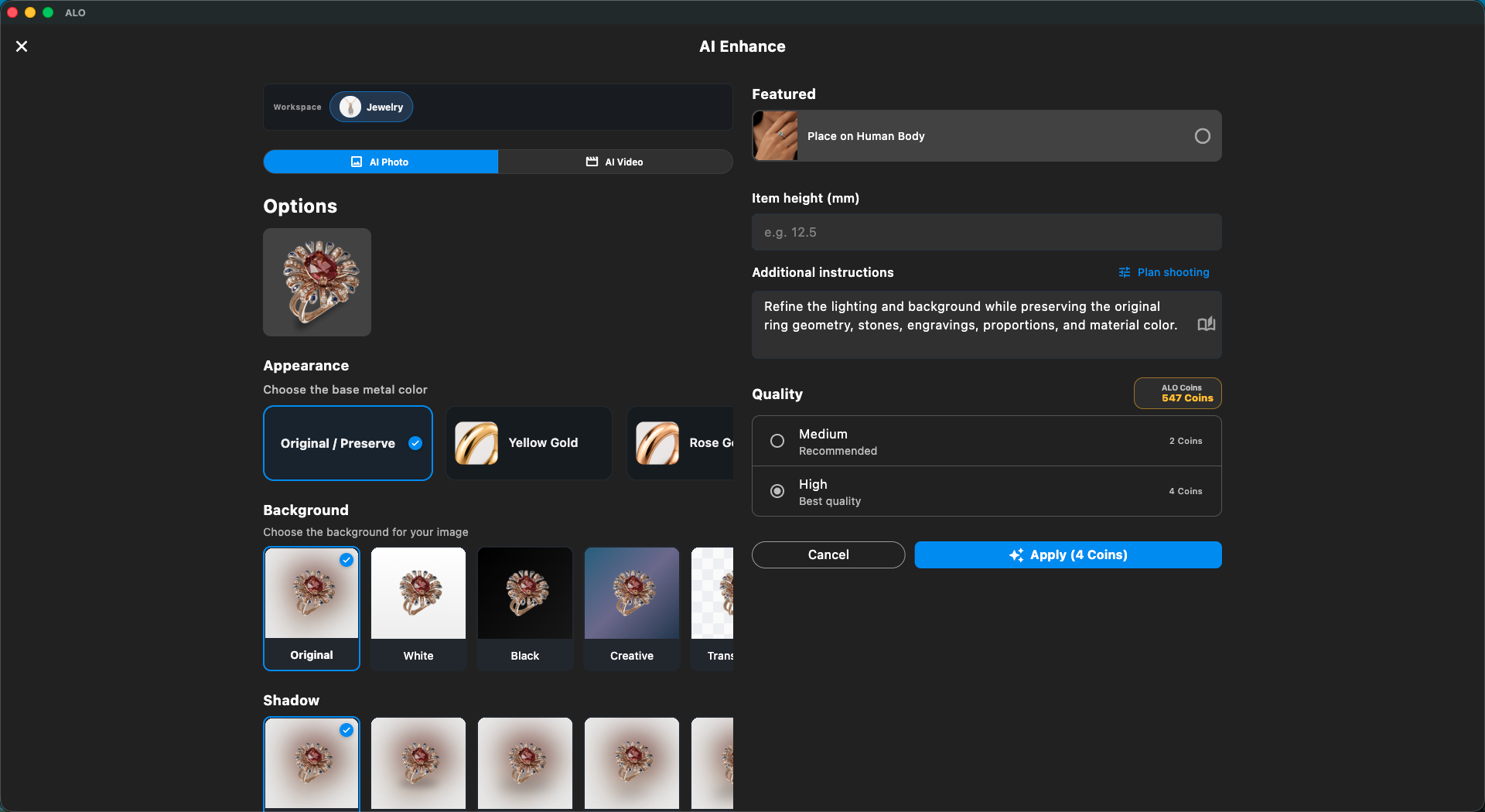
Choose the closest intended appearance and compare the result with the real product. This is a set of metal appearance options, not a complete metal color catalog.
Lighting, reflections and source exposure can change the apparent color, so review jewelry details carefully before you approve the image.
Tips for better results
- Start with a clean, sharp image.
- Use good exposure and even lighting.
- Avoid prompts that ask for conflicting changes.
- Say what should remain visible as well as what should change.
- Describe the background, material and style you want.
- Check stones, prongs, engravings, logos and symmetry after the job finishes.
- Make smaller changes first when you want to preserve the product closely.
Limitations and expected variations
- Results can vary by source image, platform and available options.
- Source image quality affects the result: a clean, sharp, well-lit image is easier to control than a blurred or low-quality one.
- Clearer prompts and instructions usually make results easier to control.
- Keep the original media when the result matters commercially, and use the comparison view to review the result before publishing or sharing it.
- AI Enhance does not guarantee exact preservation of geometry, materials, text or stones.
- A feature may be visible in one account or build and absent in another, and interface details may vary by app version and platform.
- AI Video is a separate workflow and should not be confused with image enhancement.
Troubleshooting
The feature is not visible
Check your app version, platform, account, cloud state and entitlement before assuming AI Enhance is unavailable.
The job will not start
Check connectivity, Coin balance, account state and whether the selected option is actually available in the current build.
The result looks wrong
Try a cleaner source image, a clearer prompt or a different visible quality setting. Review the image for blur, clipped highlights, reflections or missing detail.
The job failed or is still processing
Open AI Tasks before submitting a duplicate job. If retry is available, use it only after checking the current state.
You need help from support
Keep the app version, platform, source image, selected quality, exact error message and submission time handy. Do not send passwords or payment details.