ALO Cloud Sync — Customer Guide
What Cloud Sync does
Cloud Sync keeps eligible ALO App product and media information aligned between your local app and your ALO Cloud environment. ALO App is local-first: you can keep working locally, and Cloud Sync reconciles queued changes with your cloud environment when connectivity and your account allow.
Cloud Sync is more than a simple file copy — it also handles retries and safeguards around archiving or deleting content, described further below.
What remains available locally
Capturing, editing and organizing products and media are primarily local operations. You can continue this work even while Cloud Sync has not yet finished reconciling earlier changes with your cloud environment.
When synchronization runs
Synchronization can run automatically while your device is connected — for example, your Configuration → Cloud screen may state that photos and products sync automatically when connected to Wi-Fi. Exact timing can depend on your network connection, account state and any operations already queued. The sync status shown in your app is authoritative over any general description on this page.
Understanding sync status
ALO App shows cloud and sync status in more than one place, including the Home screen's Cloud Overview panel and Configuration → Cloud. Typical indicators include whether the cloud is connected, whether synchronization is idle or in progress, and the time of the last successful sync.
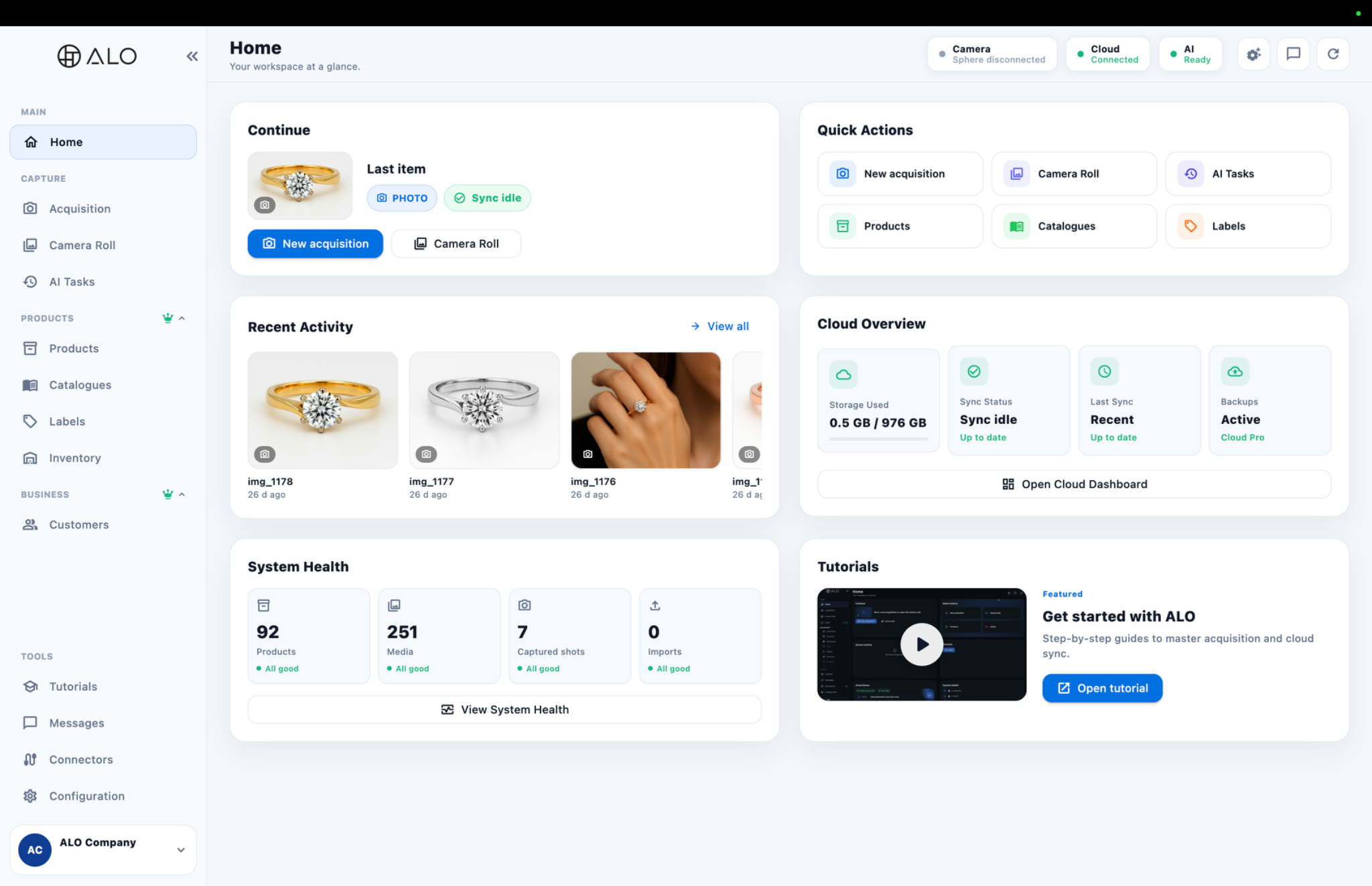
Always check the status shown in your own app rather than assuming it matches a screenshot.
Manual synchronization
Configuration → Cloud includes a Sync now action that you can use to request synchronization directly, in addition to any automatic synchronization. Using it does not guarantee instant completion — the same network, account and queue conditions described above still apply.
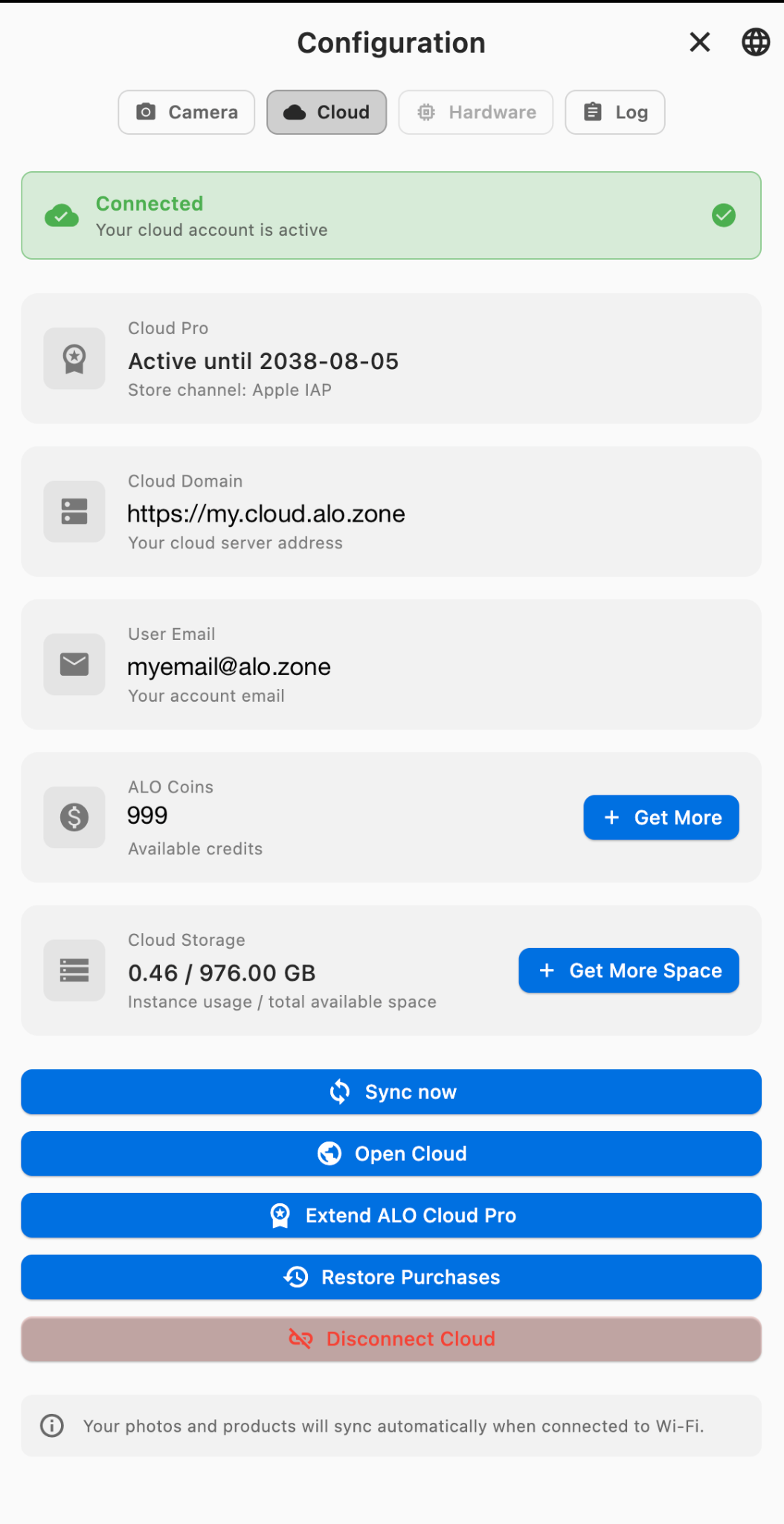
The cloud domain, email, ALO Coin balance, Cloud Pro date and storage figures shown above are demonstration data used for illustration, not real customer or account information. Your own account will show your actual values — the status shown in the app is always authoritative.
Working offline
ALO App can continue selected local operations without an active connection. Changes that require cloud services, AI processing or other remote data remain queued until connectivity returns. Do not uninstall the app or delete local data while unsynchronized work is still pending.
Using more than one device
- Avoid editing the same product at the same time on more than one device.
- Allow one device to finish syncing before making large changes on another.
- Check that you are signed in to the correct account and cloud before assuming data is missing.
- Keep the app open long enough for large media uploads or downloads to complete.
Storage and account limits
Your Cloud Overview and Configuration → Cloud screens show your current storage usage against your account's available space. If you are near or over your available space, synchronization of new media may pause until space is available or your plan changes. The storage figures and any upgrade options shown in your own account are authoritative; the figures in the screenshots on this page are demonstration values, not a general storage allowance.
Backups and restore
Configuration → Cloud may also show a Backups status. This reflects Cloud Sync's cloud continuity for your account rather than a separate backup product with its own restore workflow. Keep your own copies of important original media until you have confirmed it is present in your cloud.
Restore Purchases, also shown on this screen, restores previously purchased entitlements on this device — it does not restore or recover product or media data.
Deleting or archiving content
Archiving, local deletion and cloud deletion are different operations, and some safeguards depend on which device originally created the media. Confirm the action you intend before removing anything, and contact support if you are unsure whether a deletion will also remove cloud content.
Troubleshooting
Sync appears stuck
Keep the app open, verify your connection and avoid repeatedly restarting the same action. Note the last successful sync time shown in the app before contacting support.
Data differs between devices
Stop editing on all affected devices, confirm each device is signed in to the same account and cloud, and collect the last sync time on each device before attempting any recovery.
A product exists on one device but not another
Check the account and cloud on both devices, the last successful sync time on each, and whether the product is archived on either device.
A file appears in the cloud but not locally, or a thumbnail exists without the full file
Check local storage permissions and free space, and whether a download or upload error was shown.
Information for support
When contacting support about a sync issue, provide:
- account/cloud name;
- app version and platform;
- device identifier, where available;
- the product or media involved;
- local file path, if relevant;
- last successful sync time;
- network state at the time of the issue;
- a screenshot of the sync status shown in the app.
Never send passwords or payment-card details.
Platform differences
ALO App is available for Windows, macOS, iOS and Android. Background synchronization timing can vary by platform, particularly on mobile devices where the operating system may limit background activity.