Getting Started with ALO App
What ALO App does
ALO App brings product capture, editing, AI enhancement, media organization, cloud continuity and publishing workflows into one environment. ALO App is available for Windows, macOS, iOS and Android; available capabilities also depend on your device, connected ALO hardware and account plan.
Interface details may vary slightly by platform and app version.
First setup
- Install the supported ALO App release for your platform.
- Sign in with the account and cloud details supplied by ALO.
- Confirm that the expected plan, ALO Coin balance and hardware entitlements are visible.
- Connect your camera or use the device camera where supported.
- Connect ALO Photo Tube or ALO Photo Sphere when included in your solution.
- Create or select a product before capturing media.
Signing in or registering
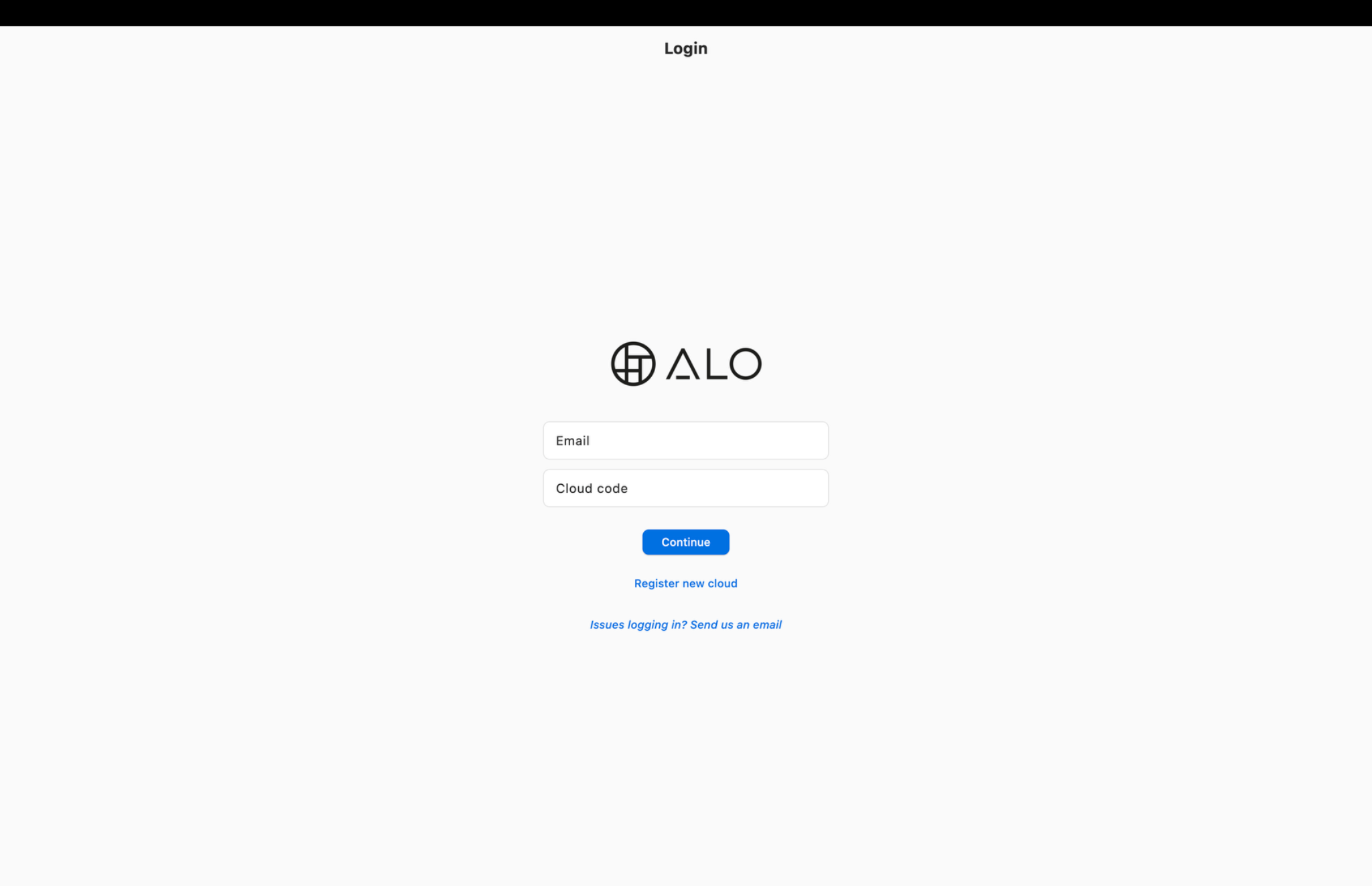
The login screen is where you enter your account email and cloud code to access an existing cloud.
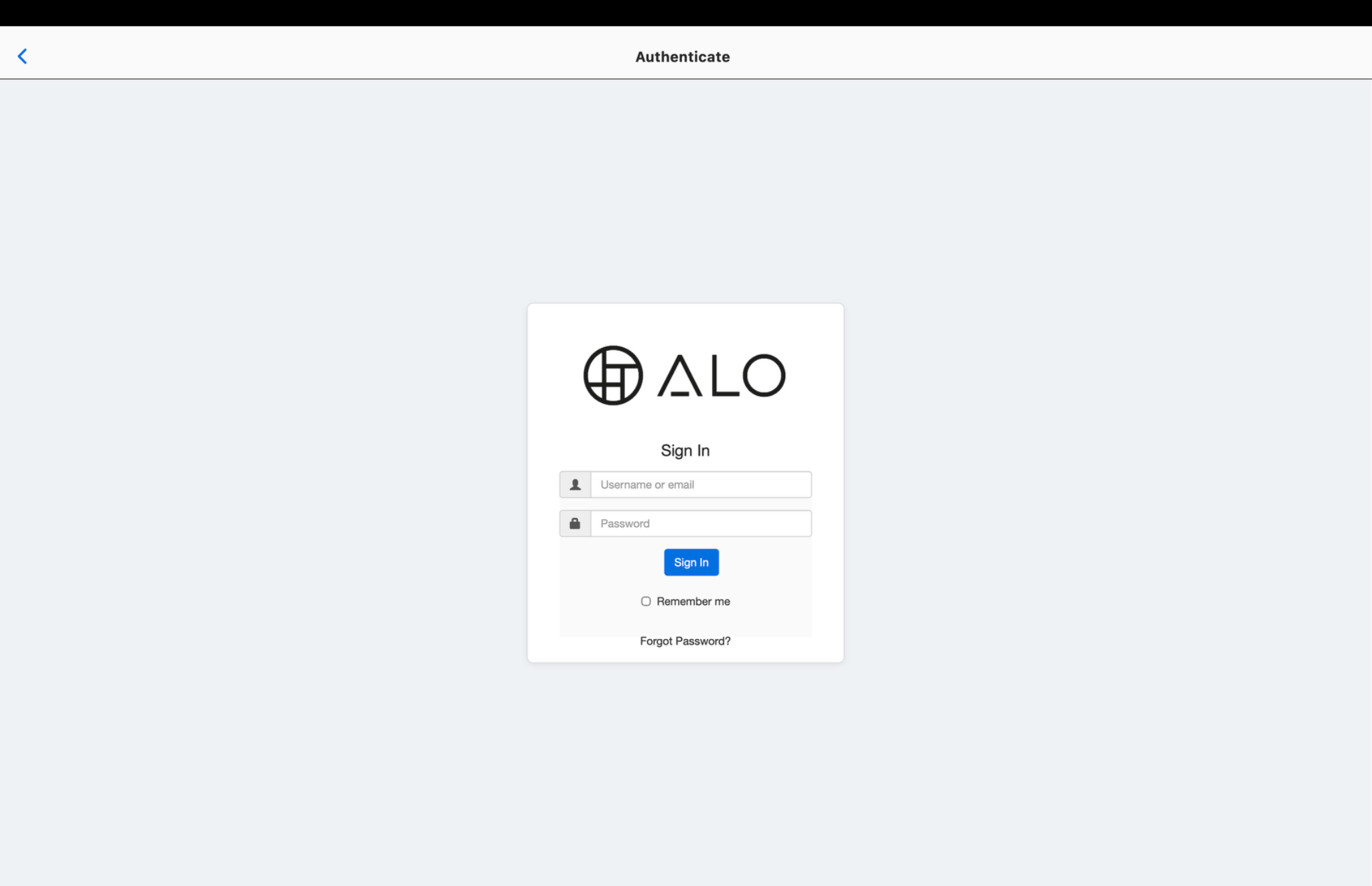
If your account signs in with a username or email and password directly, you may instead see an authenticate step:
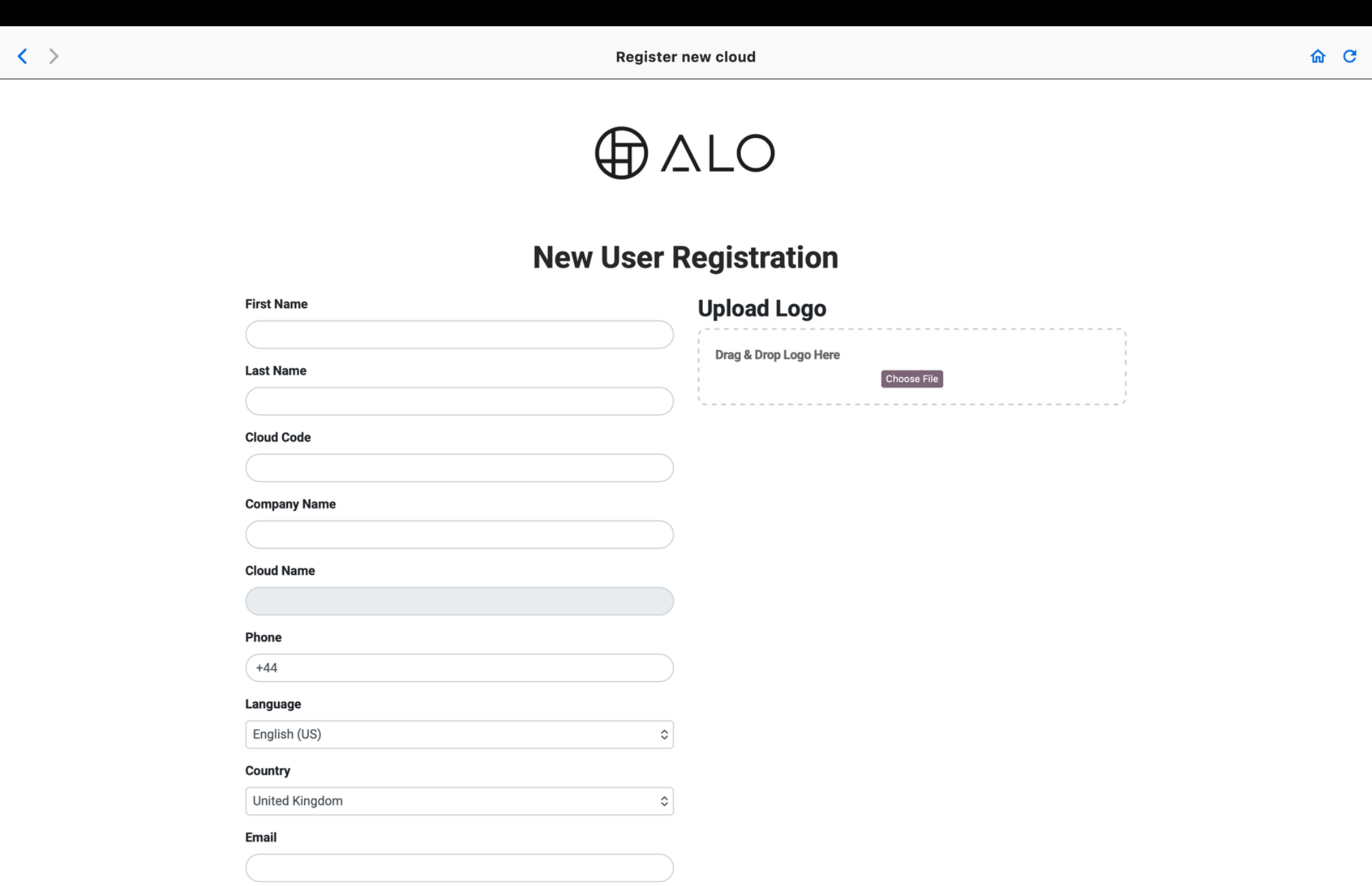
If you do not yet have a cloud, use the option to register a new one. This is a separate flow from signing in as an existing user: registration creates a new ALO Cloud for a new account, while the screens above are for signing in to a cloud that already exists.
Home workspace
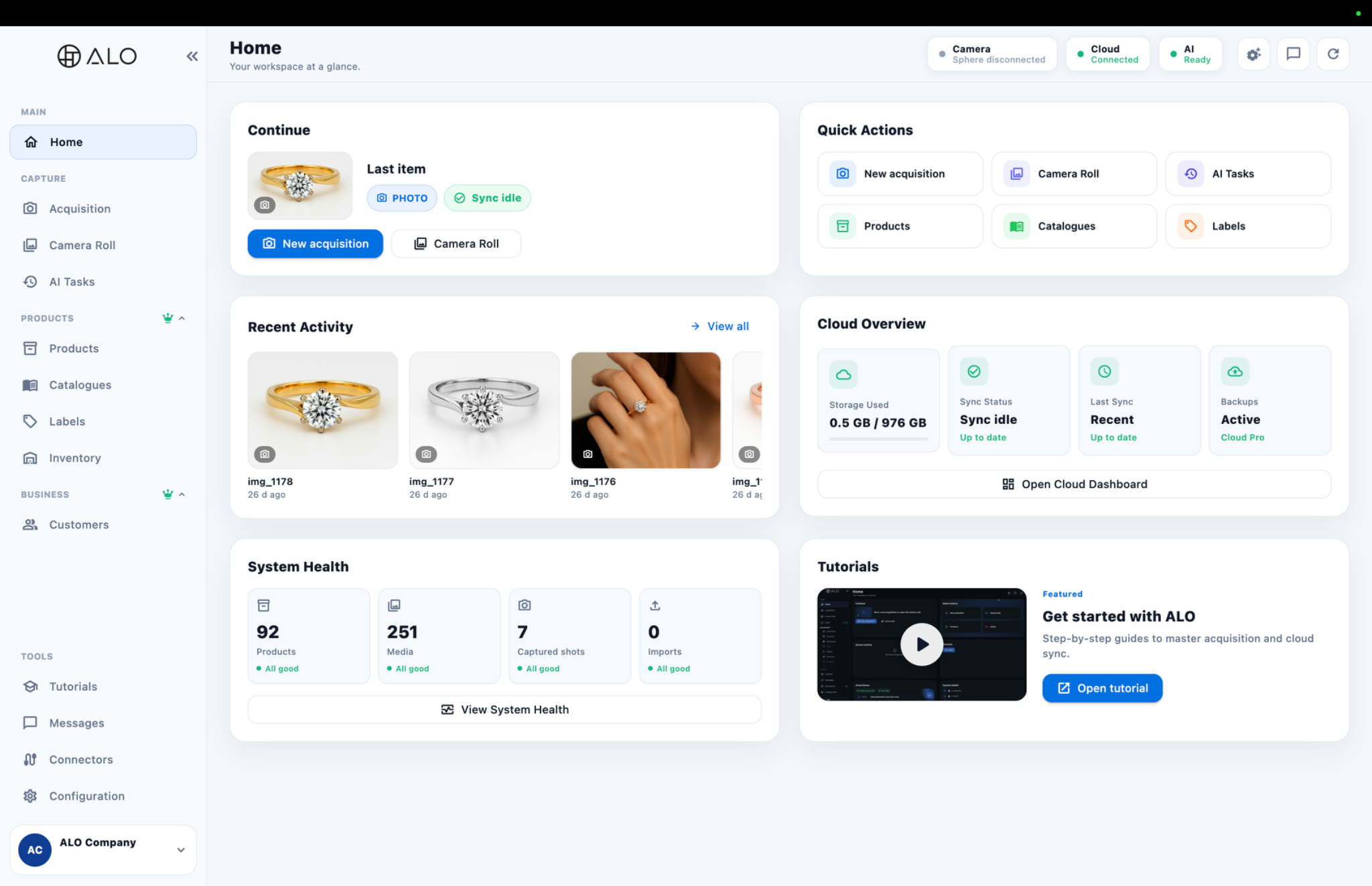
After signing in, the Home workspace is your starting point in ALO App.
Browse products and media
Captured and imported media is organized by product in the Camera Roll.
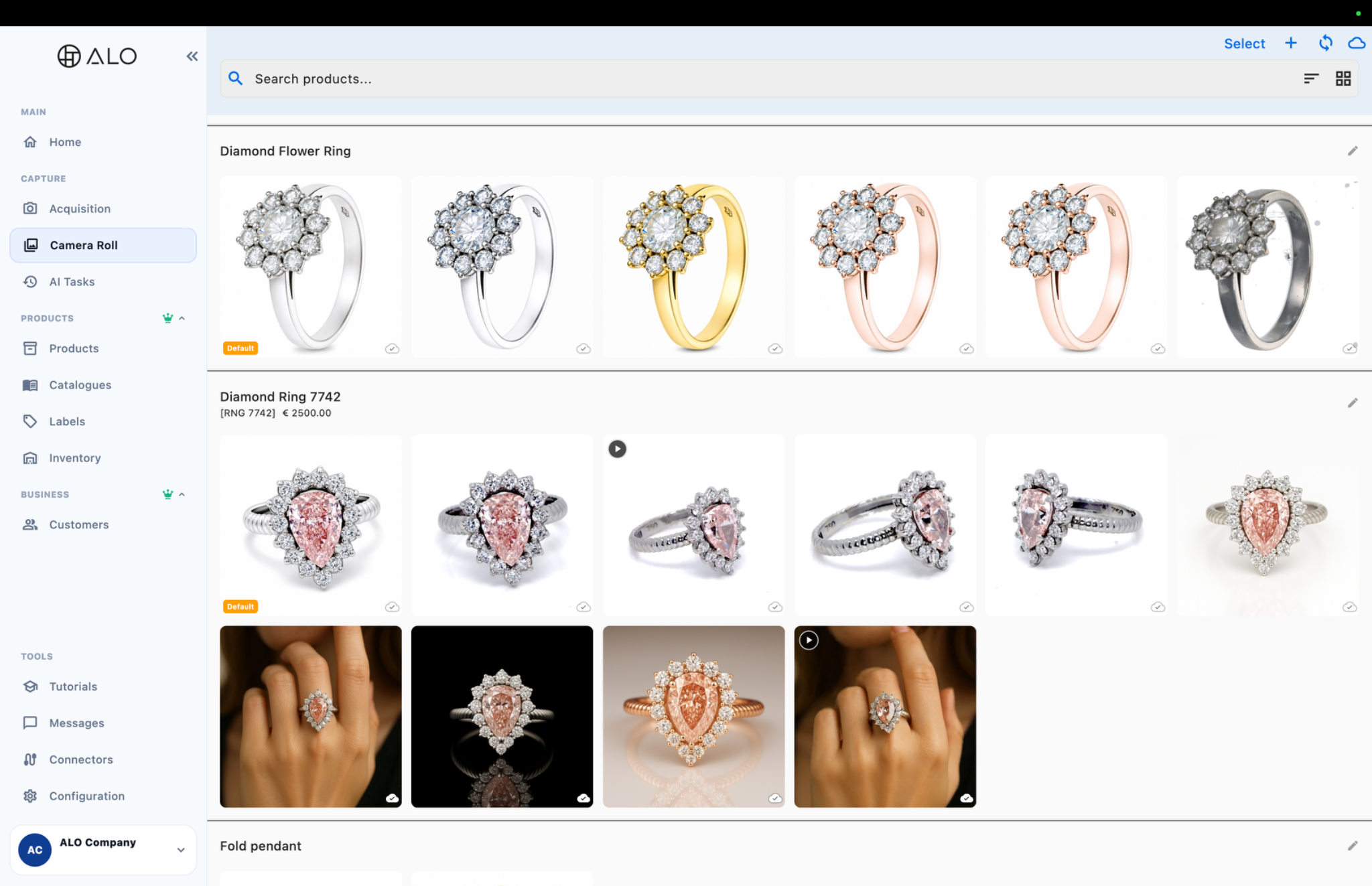
The products and images shown above are demonstration/seed catalog data used for this guide, not real customer product photography.
Basic production flow
- Prepare: position the product and clean the shooting area.
- Connect: verify camera, hardware, motor and lights.
- Capture: take a photo, video or multi-shot sequence.
- Improve: use the editor, Focus Stacking, Actual Size or AI Enhance where available.
- Organize: keep originals and derivatives linked to the correct product.
- Publish: export, share or use a configured connector.
- Synchronize: allow pending cloud work to complete before changing device or deleting local files.
AI Enhance and ALO Coins
Before submitting an eligible AI job, review the selected quality and displayed Coin cost. Current documented AI Enhance levels are Medium at 2 Coins and High at 4 Coins, but the live catalog shown in the app is authoritative.
Completed AI results are normally created as new media so the original remains available.
Working offline
ALO App may continue selected local workflows after a device has already been configured. Offline availability varies by feature. Cloud synchronization, AI processing, account changes and connectors require connectivity.
Cloud configuration
The Cloud section of Configuration shows your cloud domain, account email, ALO Coin balance, storage usage and related plan dates.
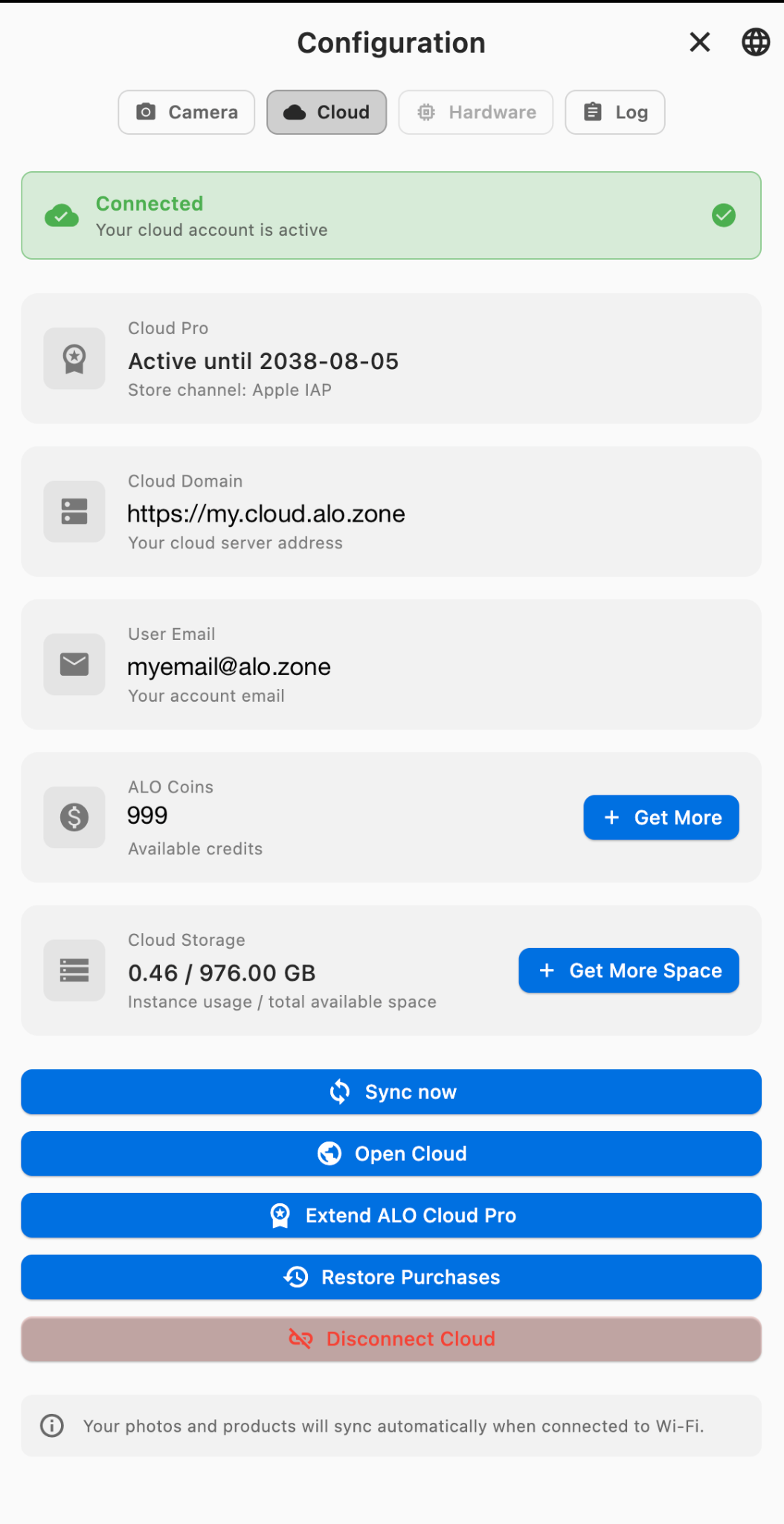
The cloud domain, email, Coin balance, storage and dates shown above are demonstration data used for this guide. Your own account will show your actual cloud domain, email, Coin balance, storage and dates — the status shown in the app is always authoritative.
Before contacting support
Record:
- app version;
- platform and device;
- account/cloud name;
- connected camera or ALO hardware;
- product and media involved;
- exact message shown;
- approximate time of the problem;
- whether the problem also occurs after reconnecting.
Never send passwords or payment-card details.