ALO Photo Tube — Customer Guide
What ALO Photo Tube is
ALO Photo Tube is a controlled product-photography system that connects to ALO App. It combines a portable illuminated enclosure, turntable rotation and app-guided capture to make repeatable product photos and videos easier to produce.
ALO App works with ALO Photo Tube on Windows, macOS, iOS and Android; the exact controls shown in the app depend on your connected hardware, platform and app version.
Interface details and available controls may vary by platform, app version, and hardware configuration.
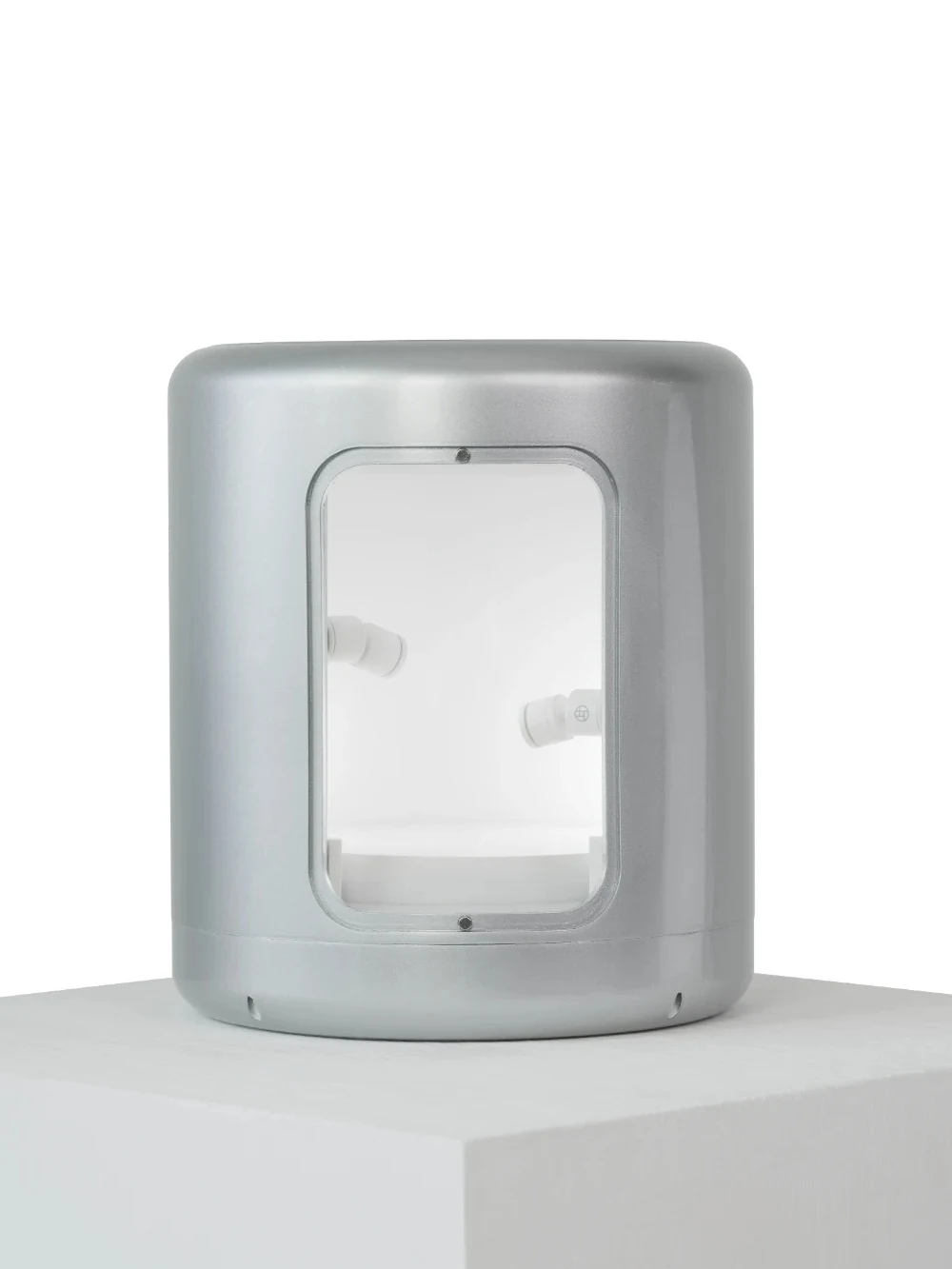
Front view of the ALO Photo Tube enclosure and turntable.
Before you begin
- Confirm ALO Photo Tube is powered.
- Open ALO App and sign in to the correct account and cloud.
- Have the product you want to photograph ready, along with any support supplied with your ALO Photo Tube.
Preparing the workspace
Clean the shooting area and the product before capture, and remove anything that could obstruct the turntable or fall into the enclosure during rotation.
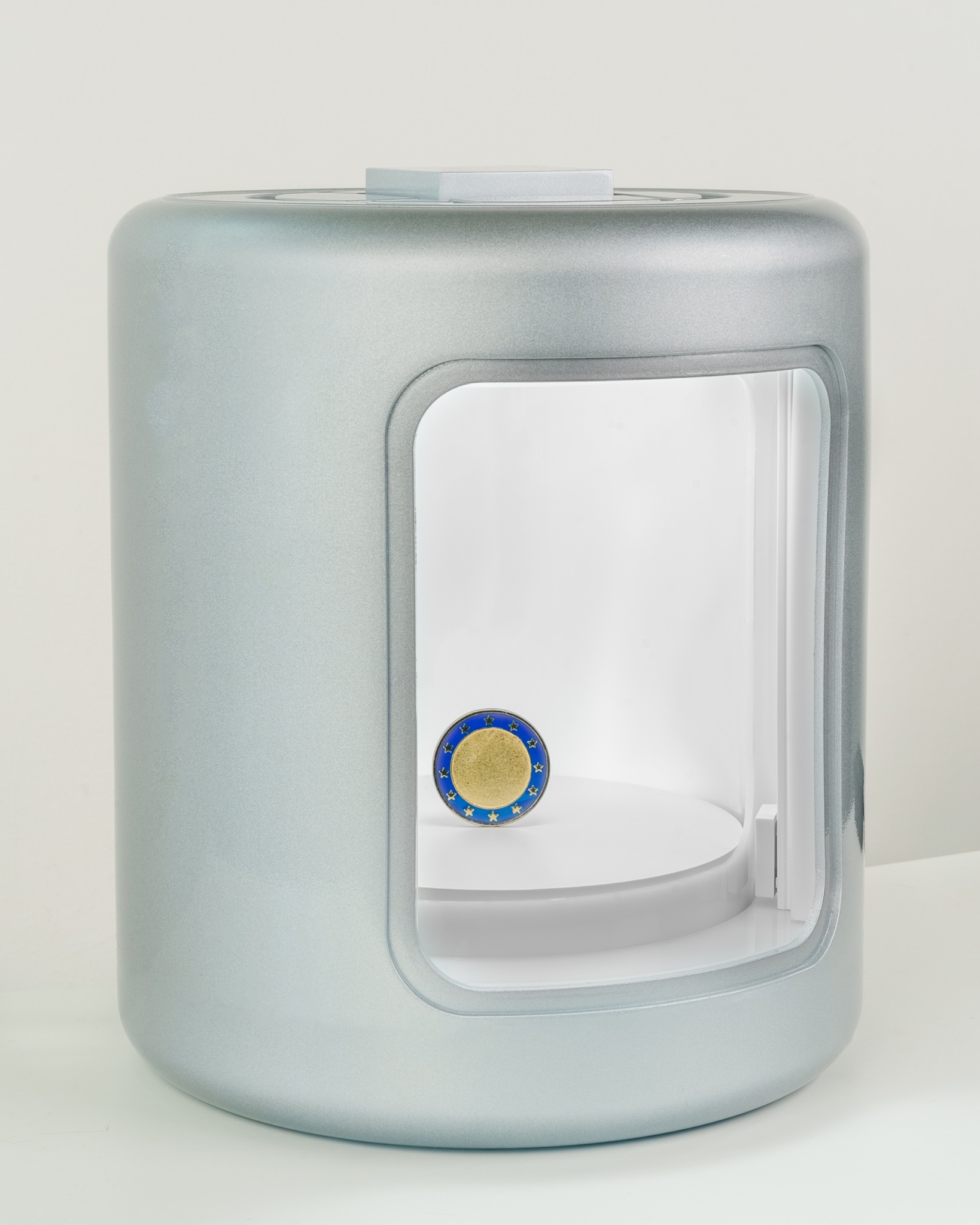
The product is centered and ready for a capture workflow.
Connecting ALO Photo Tube
Connect ALO App to your ALO Photo Tube following the setup supplied with your unit, then confirm in ALO App that it shows as connected before continuing. If it does not connect, see Troubleshooting below.
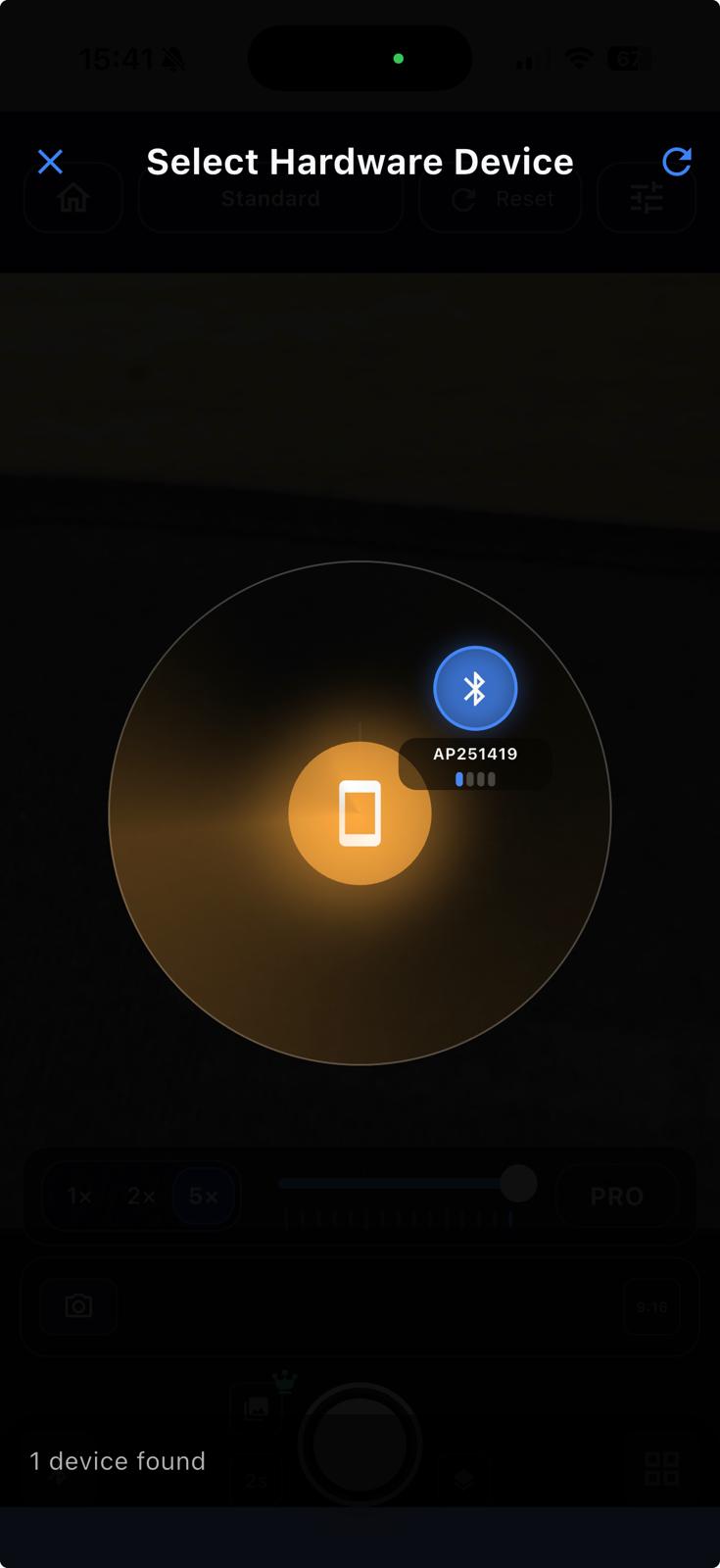
The device identifier shown here is demonstrative and may differ on your setup.
Positioning the product
Place the product on the turntable using an appropriate support, keeping it centred and stable. Avoid loose supports that can shift during rotation.
Positioning the phone or camera
Position your connected camera or device so the product is clearly visible in Live View, following the setup supplied with your ALO Photo Tube for your specific configuration.
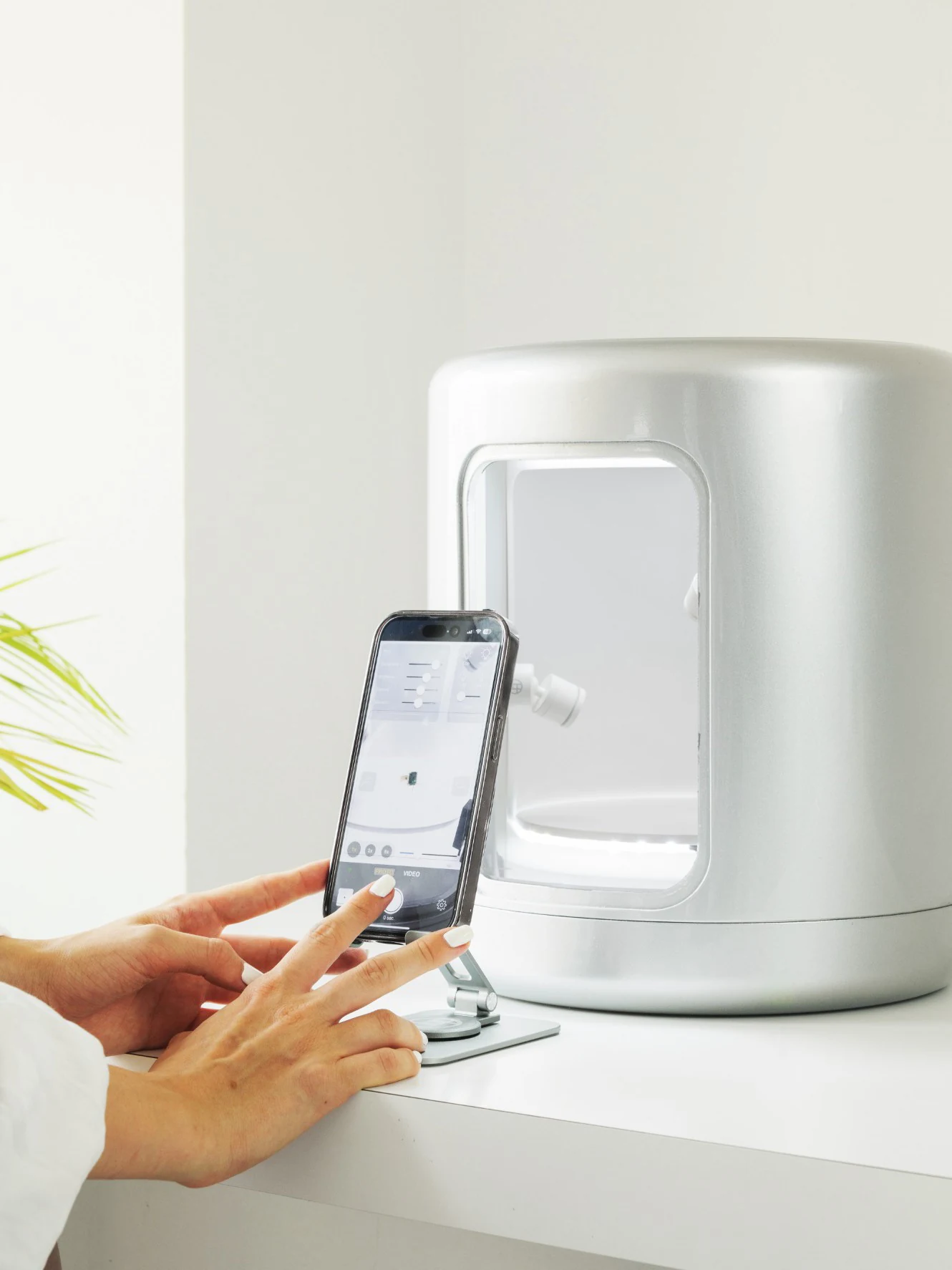
Example of a smartphone used in the Tube workflow.
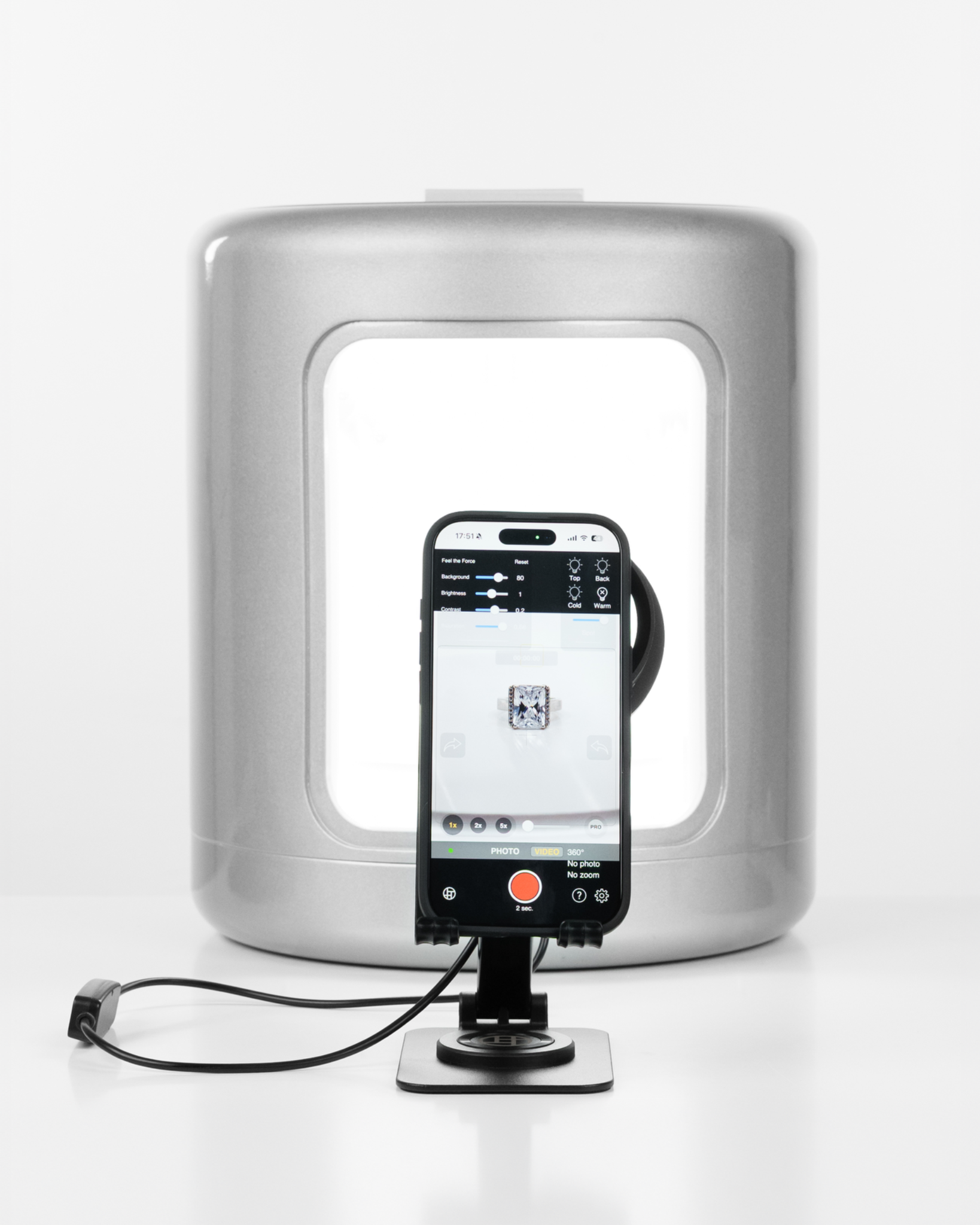
Example of a mounted smartphone setup for capture.
Lighting setup
Adjust the light and spot controls in ALO App and check for unwanted reflections before starting an automated sequence.
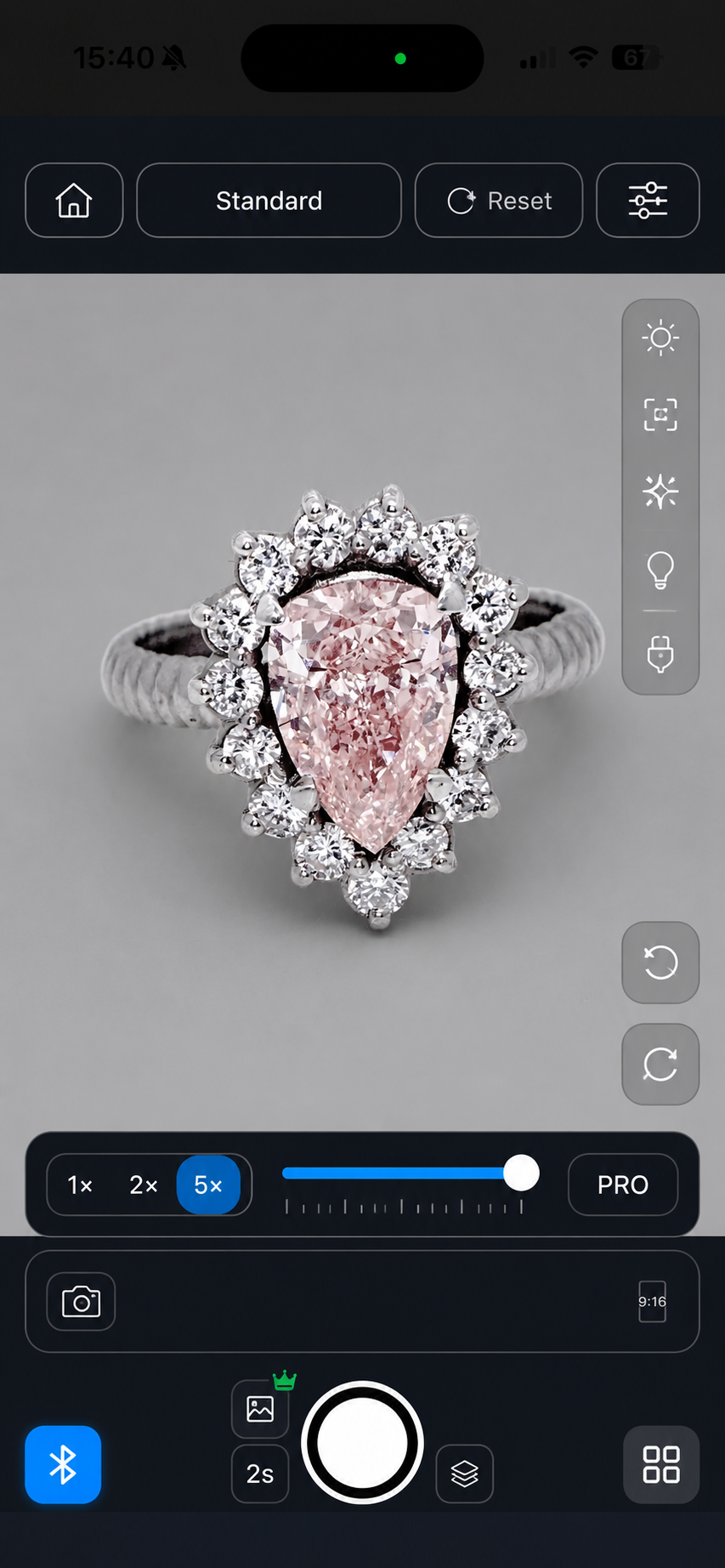
Live View and controls shown together in the Tube workflow.
Capturing photos
- Confirm the product's position in Live View.
- Adjust lighting as needed.
- Capture the photo.
- Avoid touching ALO Photo Tube until the operation completes.
- Review the result before moving the product.
Capturing a 360° sequence or video
Where available for your hardware and app version, ALO App offers rotation presets such as 360°, 180°, 90° and 0° for video capture. Select the required rotation mode, start capture, and avoid touching ALO Photo Tube or the product until the sequence completes.
Advanced capture options such as Focus Stacking and Magic Zoom may also be available depending on your hardware generation, platform and entitlement. Use Focus Stacking only with a fully stationary product, camera and ALO Photo Tube, since any movement between frames can create artifacts.
Reviewing results in ALO App
Review the captured photo or video before moving the product or starting another capture.

Example capture result, shown as a reference for review.
Improving images
After capture, you can improve images using the editor or AI Enhance available in ALO App. Any Coin cost for AI Enhance is shown in the app at the time of submission.

Example processed result after editing or AI processing. The final appearance depends on the source image and chosen settings.
Saving and organizing media
Captured media is organized by product in ALO App, alongside any edited or AI-generated results.
Cloud Sync
Captured media synchronizes with your ALO Cloud according to your account and connectivity. See Cloud Sync for how synchronization works, working offline, and storage.
Cleaning and maintenance
- Disconnect power before cleaning.
- Do not use liquids directly on electrical or moving parts; use a soft, dry cloth.
- Keep the shooting surface and turntable clear of dust and debris.
Troubleshooting
ALO Photo Tube is not detected
Check power, Bluetooth or other required local connectivity permissions, your app version, and whether another device is already connected to it.
The turntable does not start
Stop the workflow, verify that nothing is blocking rotation, and reconnect ALO Photo Tube. Do not force the turntable manually while a command is active.
Lighting controls do not respond
Confirm the active hardware connection and reconnect before repeating commands.
Focus Stacking results show artifacts
Verify that the product, camera and ALO Photo Tube all remained still during capture, and that reflections did not change between frames.
Safety
- Disconnect power before cleaning or moving ALO Photo Tube.
- Do not force the turntable or attempt to rotate it manually while a command is active.
- Keep the area around ALO Photo Tube clear of obstructions during operation.
- Do not attempt to open or service ALO Photo Tube yourself.
Platform or hardware limitations
Available controls and advanced capture modes (including Focus Stacking, Magic Zoom and any remote-control options) can vary by ALO Photo Tube hardware generation, connected platform and app version. The options shown in your ALO App are authoritative for your specific setup.
Information for support
When contacting support about ALO Photo Tube, provide:
- app version and platform;
- ALO Photo Tube model or generation;
- connection type;
- capture mode in use;
- the exact error message shown;
- a short video of the issue, when safe to record.